
Using MicroEnglish on your phone
Updated 2 October 2026
It works in your phone's browser with no app to install; add it to your home screen and download the free listening samples for offline practice.
MicroEnglish runs in the browser you already have. There's no app to download and nothing to update: open microenglish.com in Safari on an iPhone or Chrome on Android, sign in the same way as on a computer, and every lesson, your history and your settings are there. The page is laid out for a phone screen, with the player and the answer boxes one under the other.
Put it on your home screen
On an iPhone:
- Open microenglish.com in Safari.
- Tap the Share button (the square with an arrow), then Add to Home Screen.
- Tap Add.
On Android:
- Open microenglish.com in Chrome.
- Tap the three-dot menu, then Add to Home screen.
- Tap Add.
The icon is a shortcut that opens the site in your browser, still signed in, so it's one tap to your next lesson. It isn't an app-store app, and it takes no storage beyond what your browser already uses.
Get the sound right on an iPhone
Lesson audio plays as media, like a video would, so the Ring/Silent switch on the side of the phone shouldn't matter. The volume buttons do: press one while a clip is playing and check the media volume, not the ringer. If you're wearing Bluetooth headphones, make sure they're connected before you press Play. Anything else, see Audio won't play or cuts out.
Type your answer with the phone keyboard
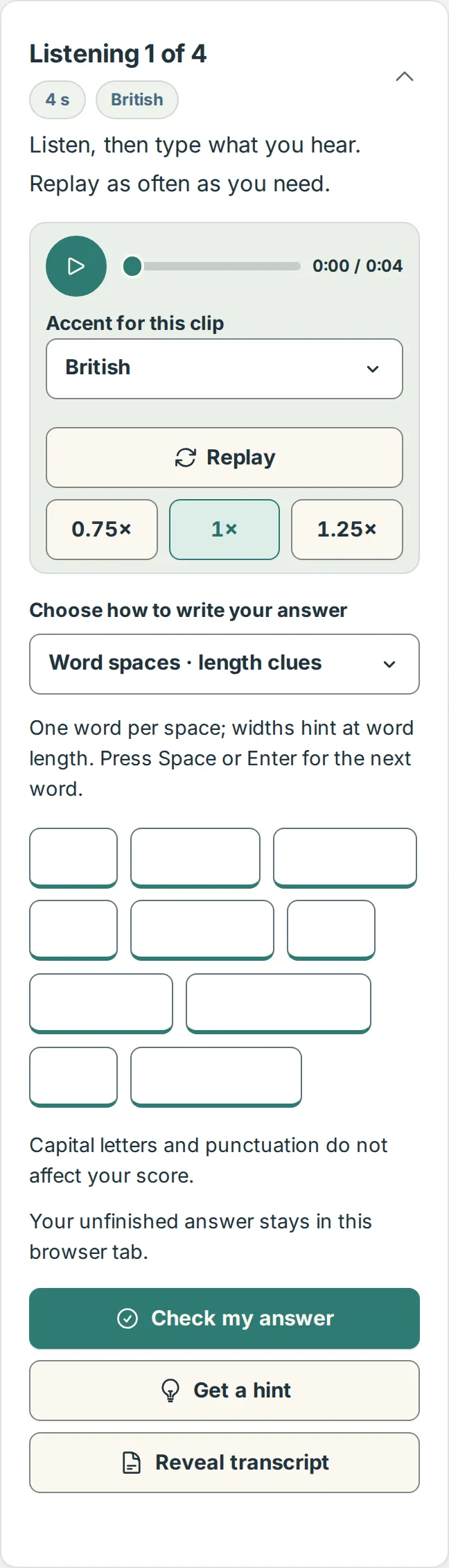
- Practice clips give you one box per word, and the width of each box hints at the word's length. The keyboard's Next key jumps to the next word and Done on the last one puts the keyboard away.
- Prefer one box for the whole line? Change Choose how to write your answer to Whole sentence. That box is a few lines tall and scrolls if you type more; its Done key closes the keyboard.
- Autocorrect and automatic capital letters are switched off in the answer boxes, so what you type is exactly what gets checked. Capital letters and punctuation don't affect your score anyway.
- Check my answer, Get a hint and Reveal transcript sit just under the boxes, and the 0.75× button in the player gives you more time between words.
Practise without a signal
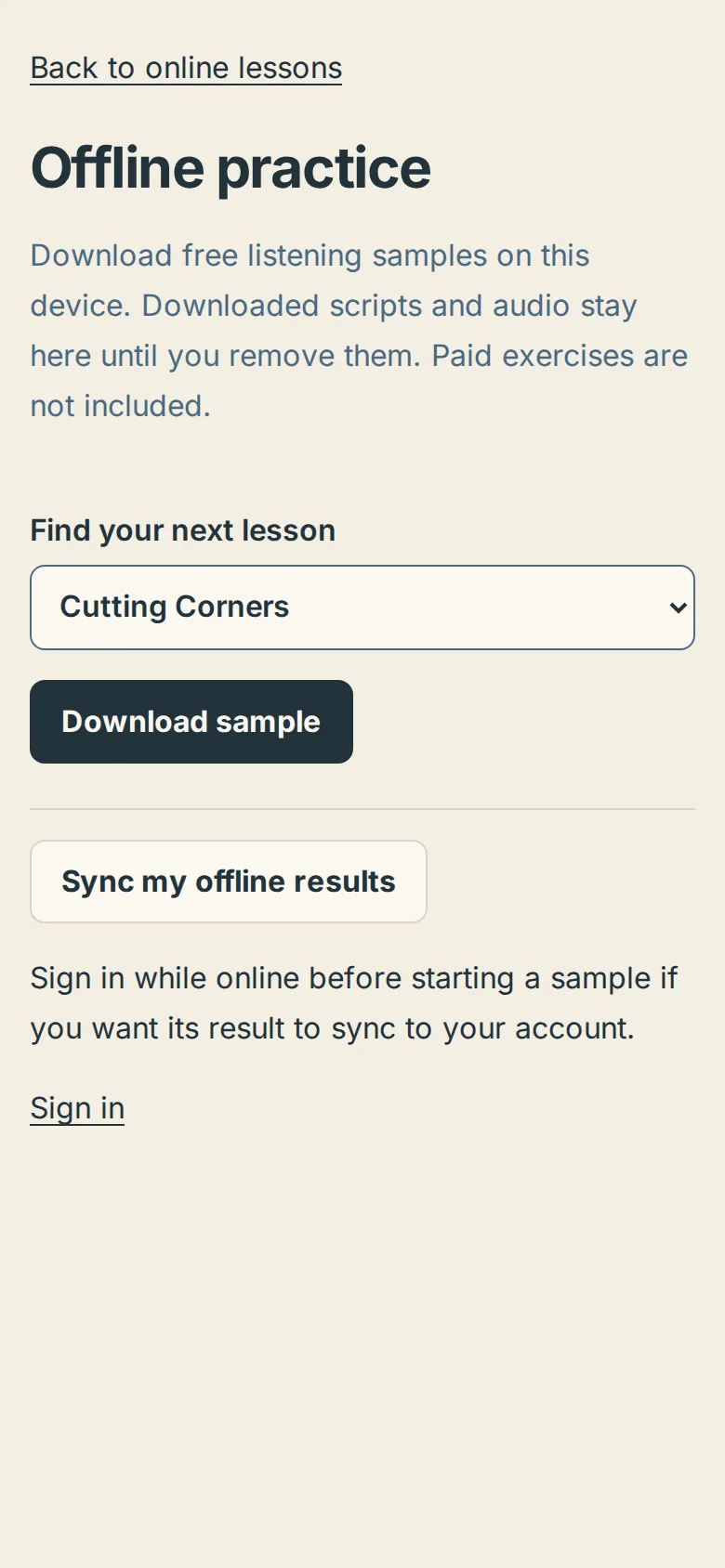
Open Offline practice while you have a connection (it's under More tools and settings on the Lessons page once you're signed in, or go straight to microenglish.com/practice-offline), choose a lesson and tap Download sample; the free listening sample and its script then work on the train or in the air. Back online, tap Sync my offline results; a result reaches your account only if you were signed in before you started the sample. Up to 24 samples fit on one device. See Practising offline.
Speaking practice on a phone
Recording works in the same browsers. The first time you tap Record my voice, the phone asks for microphone permission; if you tapped Don't Allow, see Microphone permissions to turn it back on.
If something on a lesson looks cut off or overlaps on your screen, tell us which phone and browser you're using; the lesson name is attached when you report it from the lesson page.